



By @viticci, Federico Viticci
May 21, 2026
Introducing Shortcuts Playground: Create Apple Shortcuts with Claude Code or Codex
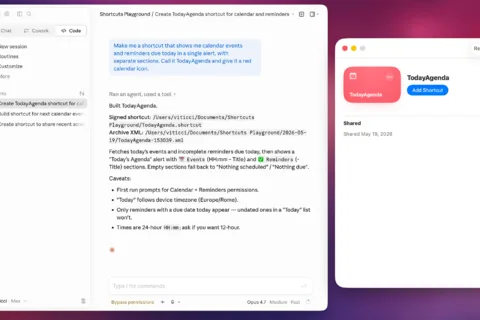
Today, I’m pleased to introduce something I’ve been working on for the past six months: Shortcuts Playground, a plugin for Claude Code and Codex that can create any shortcut for Apple’s Shortcuts app using natural language. With Shortcuts Playground, you can simply prompt Claude Code or Codex with a sentence requesting a shortcut of any kind; a few minutes later, you’ll end up with a real shortcut in Finder, ready to be imported into the Shortcuts app. It’s as simple as that. Shortcuts Playground is free and open source: anyone can download the plugin from this GitHub repo, where I extensively documented how it works behind the scenes and where you can also inspect the code yourself. Just point your preferred desktop agent to the repo, and it’ll find the plugin marketplace to install it for you. You can also check out the dedicated mini-site we launched for it at macstories.net/shortcuts-playground. For Club MacStories+ and Premier members, I’m also releasing Shortcuts Playground as a generative shortcut. It’s quite meta: once you have the main plugin installed on a Mac, you can use a shortcut to make more shortcuts and install them directly on an iPhone, iPad, or other Mac. The Shortcuts Playground shortcut is highly customizable, and I’ve shared a detailed guide for Plus and Premier members here. As part of this announcement, we’re also launching the completely redesigned MacStories Shortcuts Archive. The new archive is easier to browse with new categories and filters, and it also includes 100 shortcuts that were entirely generated by Shortcuts Playground and verified by me. I figured that it’d be nice to offer concrete evidence of Shortcuts Playground’s capabilities; I think 100 shortcuts should do the trick. You can read more about the new MacStories Shortcuts Archive here. How Shortcuts Playground Started, and Why I’m Doing This Shortcuts Playground started as a fork of an open-source skill; since January, I iterated on it every single day with Claude and Codex, reverse-engineered how Shortcuts actions work on Apple’s latest operating systems, and ended up creating something vastly more complex and reliable than the original skill I discovered at the beginning of the year. Eventually, I landed on a native plugin format that is especially nice to use in Claude Code since it supports dedicated commands, agents, and hooks. I tested Shortcuts Playground with hundreds of shortcuts. Like any other non-deterministic output generated by agents, it does not generate shortcuts that are guaranteed to be 100% accurate. I strongly advise you to always take a look at a generated shortcut and make sure it is doing what you requested. You may occasionally need to connect a few of the missing variables yourself. The way I see it, Shortcuts Playground can take you 90% of the way to a complete, fully-functioning shortcut; the remaining 10% needs to be checked and refined by you. In my tests, Shortcuts Playground was able to one-shot dozens of simple shortcuts based on Apple’s built-in actions as well as complex shortcuts that involved web APIs, advanced conditional logic, SSH and shell scripting, and more. Shortcuts Playground’s output is heavily influenced by which coding agent and model you use. I recommend using Shortcuts Playground with either Claude Opus 4.6/4.7 (at Medium/High reasoning level) or GPT-5.5 (Medium or High level) as the underlying model for best results. Opus 4.7 with Fast mode at High reasoning is very nice and speedy; GPT-5.5 at High with Fast mode is also quite impressive. All of this may seem strange coming from me. For the better part of my career writing at MacStories since 2009, I explored the then-nascent field of iOS automation and eventually embraced Workflow, which was then acquired by Apple and relaunched as Shortcuts. Beyond my iPad coverage and annual iOS reviews, I’ve made a name for myself in a tiny corner of the Internet by being the guy who wanted to automate everything with Shortcuts. With Shortcuts Playground, I am, in many ways, obviating the need for someone like myself – an expert in building automations by hand, the old-fashioned way. If you think about it, releasing Shortcuts Playground seems like a counterintuitive move from a financial standpoint for me: if anyone can now make shortcuts with natural language, they’ll no longer need my articles and guidance, right? The reason I’m doing this is twofold. On one hand, my goal has always been to democratize automation on Apple platforms by helping others be more efficient with their iPhones, iPads, and Macs. Shortcuts Playground is the ultimate democratization tool for Shortcuts: with it, you can just write down an idea and will it into existence without needing any advanced Shortcuts knowledge. I see that as an incredibly powerful thing for people who may not even know that their computers can automate something for them. On the other hand, I fundamentally believe that manual coding has always been an obstacle to productivity, and that a tool like Shortcuts Playground is another layer of abstraction in the long history of programming that is going to make software easier to make and more accessible. I’m convinced that in the near future, Apple will release an official version of Shortcuts Playground that is more capable and natively integrated than my tool can ever aspire to be. AI-generated coding is the new reality today, and we’re increasingly seeing programmers reinventing themselves as managers of agents rather than people who know how to type code into a text editor. I believe the same will happen with Shortcuts. And so, I want to get ahead of it and reinvent myself as a new kind of Shortcuts creator – one who teaches readers how to leverage AI and become automators who orchestrate agents for Shortcuts. But enough about me. Let’s dig into Shortcuts Playground and how you can use it. There are some mandatory pieces of software and components you will need to start using Shortcuts Playground. First, you’re going to need a computer with either Claude Code or Codex installed. I’m not going to write a tutorial on how to do that here. You can use either the native apps or CLIs, and it won’t matter as far as the plugin is concerned. The easiest way to install Shortcuts Playground is to simply point Claude Code or Codex to the repo and ask the agent to set up the plugin for itself. The repo contains marketplaces for both Claude Code and Codex, with separate plugin files and instructions for each. If you’d rather do a manual installation, you can run the respective claude and codex commands from the repo to add plugin marketplaces, then download the plugin. The two plugins are identical in terms of knowledge and bundled skills, but the Claude Code plugin offers a nicer experience thanks to Anthropic’s more advanced plugin architecture – at least for now. The Claude version of Shortcuts Playgrounds supports dedicated commands to /build and /remix shortcuts with standalone agents; you can issue those slash commands to Claude, and it’ll know how to spin up dedicated sub-agents for creating a brand new shortcut or remixing an existing one starting from an XML file. (You can, in fact, export any shortcut as XML on Apple devices.) Both plugins also support hooks. As soon as the agent writes a shortcut draft file to disk, a hook fires a so-called Craig Loop – my take on a Ralph Loop – that validates the shortcut’s syntax and either tells the agent to fix some issues or proceed with signing the resulting .shortcut file. That’s essentially all you need to get started with Shortcuts Playground. On first run, the plugin will create a /Shortcuts Playground subfolder inside /Documents, which is where all the signed .shortcut files will live. When the agent is done, you can double-click a .shortcut file and add it to the Shortcuts app. You’ll then be able to read the description of the shortcut, follow along the actions created by the agent, learn why it added them, and fix the occasional mistakes left by AI. You can start simple with Shortcuts Playground: ask for “a funny and unhinged Hello World shortcut”, or perhaps a shortcut that “takes my 5 most recent screenshots and sends them to a contact on iMessage”, or maybe one that “shows me how much time I have left until my next calendar event”. Yes, those are considered “simple” shortcuts in Shortcuts Playground. Start a new session in your favorite agent, enter your idea, and wait a few minutes (depending on the complexity of your idea). Once it’s done, you’ll have a validated and signed shortcut waiting for you. In my experience, I’ve found Opus 4.7 with High reasoning and Fast mode to be the sweet spot of performance-to-intelligence; however, since leaving agents running in the background is pretty common these days, I think you’ll have a good time without Fast mode, too. Just type a few ideas, let multiple Claudes make shortcuts in the background for you, and reap the rewards later. Or you can start dipping your toes into advanced shortcut creation. This is where you can go nuts with Shortcuts Playground. I generated shortcuts to append either some text or images to a daily note in Notion. I created a shortcut that got my tasks due today in Todoist and allowed me to select which ones to reschedule with a date picker. I made one that lets me record audio, transcribes it with the Gemini API, and copies the transcribed text to the clipboard. I just had to type what I wanted, then Shortcuts Playground + Claude searched the web and ran tests before creating functioning shortcuts for all these ideas. Since Shortcuts Playground is running on your computer, it has access to your Mac and can create shortcuts that invoke the shell on macOS. For example, I created a shortcut that lists all the cron jobs I have running on my machine; I made another that let me control OpenClaw from Shortcuts. If you’re an Obsidian user, you can make shortcuts that deal with the Obsidian CLI locally or over SSH. The possibilities are endless, and once you realize that Shortcuts Playground will just... make something for you, it becomes kind of exhilarating to just try ideas out and see what happens. That’s what makes creating automations with desktop agents so great: with enough permissions, they can close the loop on themselves in terms of making new automations based on tools they can independently test. For example, if you ask Shortcuts Playground to make a shortcut to transcribe audio with the Google Gemini API and tell it that your Gemini credentials are in 1Password, Claude will test the Gemini API on its own first, then create a shortcut based on the API response it verified beforehand. There are also some nice-to-have features that are optional for the execution of the Shortcuts Playground plugin, but which will produce better results in my experience. In my Claude Code, I use the MCP servers for SerpAPI and Firecrawl for searching the web and scraping webpages, respectively, instead of Claude Code’s built-in web search and web fetch tools. In my tests when creating shortcuts that involved searching the web for documentation upfront (such as when making shortcuts for the Notion or Todoist APIs), those MCPs gave Claude better results from the web than its built-in tools. Once again, the advantage of this system is that Claude Code can research and test APIs before building a shortcut; if you give Claude Code access to those tools beforehand, the generated shortcut will be more reliable and grounded on real tests. I can’t stress this enough, however: since this is an unofficial project not affiliated with Apple, the quality of AI-generated shortcuts is as good as it can be for something that’s largely based on reverse-engineering the shortcuts syntax and giving my personal feedback to the AI for nearly six months. You’ll always have to double-check the output of Shortcuts Playground; even though the plugin can one-shot so many ideas now, I strongly recommend always opening generated shortcuts in the Shortcuts app and verifying them yourself. In my experience as a veteran Shortcuts user, creating shortcuts with Shortcuts Playground had some unexpected positive effects: I started learning new techniques from the AI for building advanced shortcuts I didn’t even know were possible. I never bothered to learn the intricacies of the Gemini or Notion APIs; by prompting Shortcuts Playground and inspecting the results, not only did I verify the plugin’s output, but I also finally learned how to parse those API responses from Shortcuts. On several occasions, I found myself staring in near disbelief at novel Shortcuts techniques that Claude or Codex came up with, which I didn’t think of myself in the almost 12 years I’ve been building automations in first Workflow, then Shortcuts. If you don’t believe me, try creating a shortcut with Claude Code and Shortcuts Playground, then ask Claude to explain step-by-step how everything works behind the scenes in plain language. You’ll be surprised. How Shortcuts Playground Works, and How I Made It I’m going to offer a deeper technical explanation below, but the gist of how Shortcuts Playground works is the following: Under the hood, shortcuts in the Shortcuts app have always been XML files that get signed and encrypted into a proprietary .shortcut file format. This has been the case since the Workflow days; the file format changed to .shortcut with the Apple acquisition. Any shortcut in your library can be exported to XML. On a Mac, the entire Shortcuts database (which contains actions, App Intents, parameters, etc.) can be accessed at /Users/username/Library/Shortcuts/Shortcuts.sqlite. The Shortcuts Playground plugin is powered by extensive documentation that teaches an LLM how Shortcuts actions work, what syntax they use, and how they’re supposed to be connected to one another. A built-in skill tells agents how to generate an XML shortcut, which is then signed using Apple’s own shortcuts CLI that is installed by default on macOS. The plugin never accesses your Shortcuts database at runtime. Effectively, the plugin is turning your prompts into XML and converting them to native shortcuts using a command-line utility made by Apple itself. That’s the short version. If you’re interested in the longer version of the story: Toward the beginning of January, I found a skill on GitHub created by drewocarr that promised to let you create shortcuts using Claude Code. I tested the skill directly in Claude Code on my Mac, and while it worked, there were a lot of issues with hallucinated actions, missing variables, and shortcuts that simply did not work. But in taking a look at the skill, I saw potential: the skill was based on a bunch of Markdown files that explained to Claude Code how the Shortcuts XML syntax worked, what action identifiers were, and so forth. I figured that perhaps drewocarr created the skill based on older documentation or with a limited subset of shortcuts, and I wa
Source: MacStories